Clektron (Electron-C)
In this chapter you will learn about Clektron (Electron-C) Scripting Engine.
What is Clektron
Clektron (aka Electron-C) is a real-time, C Scripting Language backend in the framework powered by TinyCC.
It provides a minimal yet powerful scripting interface, designed for C++ scripts and seamless deployment which can be used for a wide range of purposes such as deployment, debugging, testing, modding, networking etc.
Clektron is used for deployment and installation logic of the official Jenova Installer.
How it Works?
Clektron boasts a built-in system that provides basic functionality for deployment purposes including file management, memory management, downloading, extraction and other related tasks. In addition to this system, it's also possible to bind any C or C++ function from a C++ script, allowing for on-demand usage at any stage.
On execution, it dynamically creates the C source code, compiles and executes it on-the-fly.
It also supports Managed Safe Execution (MSE) by ensuring memory violations do not crash the application.
Supported Types
Clektron supports the following types:
- All C standard types (ISO-C99) including
int,uint,float,double,long longetc. - Similar to C++, Clektron also supports
boolwith valid values oftrueandfalse - Strings are represented as
String(Equivalent toconst char*) - Sizes are represented as
Size(Equivalent tosize_t) - Enums, Pointers and Structures available as
enum,void*andstruct
Syntax Highlighting
The scripting engine includes a built-in syntax highlighter available as ClektronHighlighter resource. It can be utilized to provide runtime script editors with a special C syntax highlighting. It's also employed within the Clektron Console.
To add a Clektron code editor, simply create a CodeEdit node and assign a ClechtronHighlighter resource as the highlighter.
Here's an example of how it can be created from C++ scripts :
// Create New Highlighter
Ref<CodeHighlighter> ctronHighlighter = InstantiateAsRef<CodeHighlighter>("ClektronHighlighter");

// Create Code Edit
CodeEdit * ctronEditor = memnew(CodeEdit);
ctronEditor->set_syntax_highlighter(ctronHighlighter);
When a new symbol is registered to Clektron backend using BindSymbol all highlighters will be updated and highlight the new functions.
Developer Console
Jenova Framework provides a runtime Developer Console powered by Clektron. It's available as a Node and can be added to a scene.

The Console node is a developer console that provides text-based interface for developers and players to input commands, manage game logic, configure server settings and access various debugging and testing tools. This feature allows developers to manipulate game state, enable debugging features and even crash the game intentionally for testing purposes. It is a widely used tool in the game development industry, employed by developers across various games to facilitate debugging, testing and optimization.
A notable example of its usage is by Valve in their  Source Engine, where it is utilized for extensive debugging and configuration purposes.
Jenova's Developer Console stands out from similar tools, as it is powered by a Clektron, a capable real-time JIT-backed C scripting language.
This enables direct C language input within the console. Developers can bind any C/C++ function symbol to the Clektron backend for dynamic use at any point in the console.
clektron::BindSymbol(ConsoleInterface::PrintOutput, "print", "void", 2, "String", "...");
clektron::BindSymbol(ConsoleInterface::PrintTime, "time");
After a console enters the scene tree, it can be accessed via a toggle key configured using a ConsoleScheme resource.
Using from Scripts
To use a console in a C++ script, simply get the console node and assign it as a Console type. You can then directly access the console.
Here's an example :
// Obtain Developer Console
Console dc = GetNode<Node>("World/Console");

// Print to Developer Console
dc.Log("Loading Game Assets...");
dc.Log("Game Assets Loaded.", Color("f6aaaa"));

// Execute Command in Developer Console
dc.Execute("time(); print(\"The cake is a lie!\");");
dc.Execute("throw_box(200)");

// Clear Developer Console Output
dc.Clear();
func _ready():
	var console = get_node("World/Console") as Console;
	console.logc("Hello World", Color.ROYAL_BLUE);
	console.execute("time");
When executing a single command, you don't need to add () or ; and the following commands are all valid: time time() time();
Console Scheme
The console can be customized by assigning a ConsoleScheme resource in the editor inspector. Each console can have its own configuration.
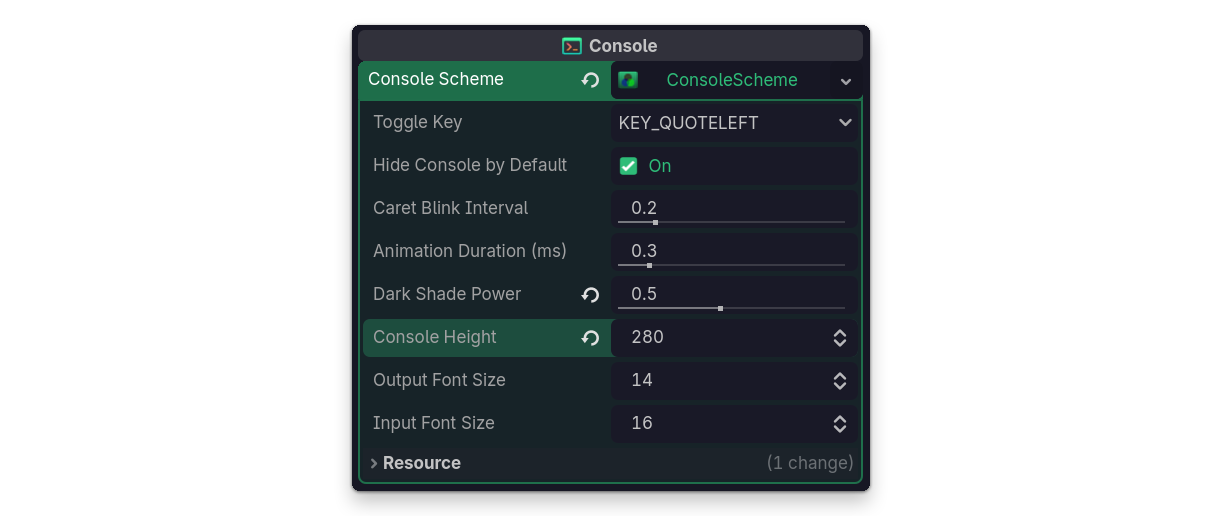
ConsoleScheme resource properties.Options :
- Toggle Key : The key used to show and hide the console in-game. It's set to ` by default, as it doesn't conflict with code writing.
- Hide Console by Default : When enabled, the console doesn't show up at startup. It's set to
trueby default. - Caret Blink Interval : Sets the interval for the caret in the developer console to blink.
- Animation Duration : Sets the duration of the developer console animation while showing and hiding.
- Dark Shade Power : Sets the darkness value of the developer console panel. A lower value makes it more glass-like.
- Console Height : Sets the height of the developer console panel, It's set to 210 by default.
- Output and Input Font Sizes : Sets the font size of the developer console input and output text blocks.